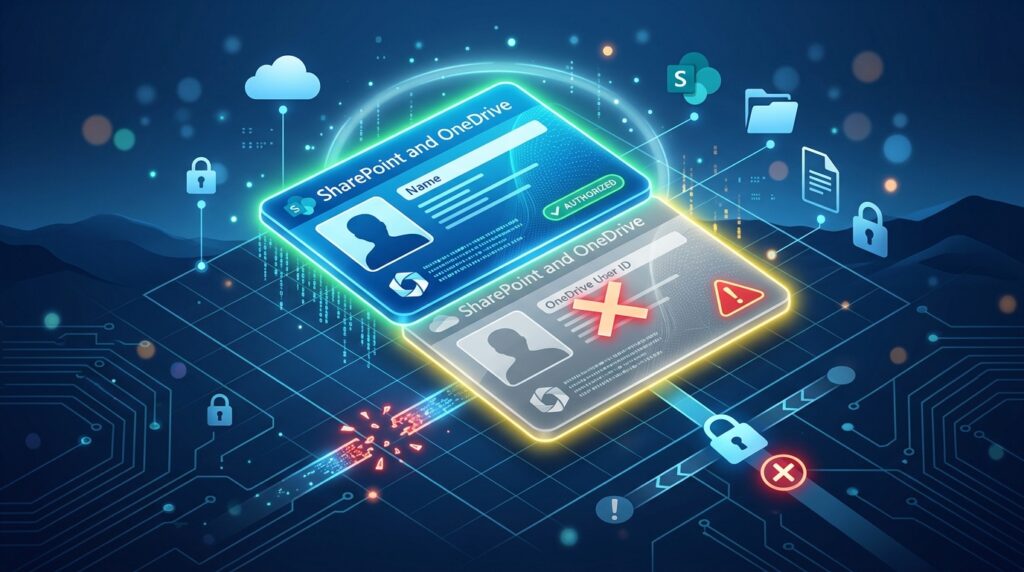
In Microsoft 365 administration, a common scenario arises when a former employee returns to the company. IT administrators typically recreate their account using the exact same User Principal Name (UPN) as their previous account.
While this seems straightforward, these returning users frequently encounter issues when trying to access SharePoint and OneDrive sites. They might report:
- “I asked the site owner to regrant permission, but I still get an access denied error.”
- “I cannot access files my colleagues just shared with me; the system says I don’t have permission.”
How to Verify That This Is Really a Site User ID Mismatch
Before attempting any fixes, it’s important to confirm you’re dealing with a mismatch rather than a standard permission issue. Common indicators include:
- User recently left and rejoined the organization.
- Same UPN was reused.
- Site owner regranted permissions but Access Denied persists.
- OneDrive URL contains a numeric suffix or GUID (e.g.,
https://contoso-my.sharepoint.com/personal/UserA_Contoso_com1). - User appears in Site Permissions but still cannot access the site.
This behavior is intentional. SharePoint does not automatically trust a newly created account simply because it uses the same UPN. The platform treats it as a different identity until the legacy user reference is removed.
The Cause: Site User ID Mismatch
This issue is caused by a Site User ID mismatch. When you delete a user account from the Microsoft 365 Admin Center and create a new one with the same UPN, Entra ID assigns a completely new and unique ID to this new account (Entra Object ID).
However, the UserInfo list in SharePoint and OneDrive still retains the old ID associated with that UPN. When the new account tries to log in, SharePoint detects that the new ID doesn’t match the old ID stored in its UserInfo list, resulting in an immediate “Access Denied” error.
Resolutions
Method 1: Diagnostic Tool (Recommended)
Microsoft recommends running the Site User ID Mismatch diagnostic before attempting any manual remediation.
- Log into the Microsoft 365 admin center with a SharePoint Administrator account.
- You can click the Run Tests: Site User ID Mismatch button or access it via the official article Fix site user ID mismatch in SharePoint or OneDrive.
- Enter the affected user account (e.g.,
UserA@contoso.com) and the original site URL (e.g., the old OneDrive URL). The diagnostic validates the user identity stored in SharePoint and updates the site’s UserInfo entry when a mismatch is detected.
Important: For OneDrive remediation, Microsoft requires the newly created account to have the same UserName as the original account. Otherwise, the user’s original OneDrive content cannot be reattached automatically.
(Note: Microsoft states that some OneDrive changes may take up to 24 hours to complete).
Method 2: Manual Cleanup
If the diagnostic tool is unavailable or you need to fix a specific SharePoint site immediately, you can manually resolve this issue via the UserInfo list:
- Access the affected SharePoint Site as a Site Collection Administrator.
- Navigate to the hidden UserInfo list by appending this to your site URL:
https://<tenant>.sharepoint.com/sites/<site_name>/_layouts/15/people.aspx?MembershipGroupId=0 - Locate the affected user account, select it, and click Delete Users from Site Collection.
- Once the old User ID is successfully removed, you or the Site Owner can regrant permissions to the user based on the site’s permission model. SharePoint will now recognize and store their new ID properly.
Method 3: PowerShell Cleanup
For advanced scenarios or multiple sites, you can use PnP PowerShell to clear the legacy identity.
$ClientId = "Your-client-id" # Your own Entra ID app for Interactive Login
$SiteUrl = "https://contoso.sharepoint.com/sites/YourSite"
$UserEmail = "UserA@contoso.com"

Connect-PnPOnline `
-Url $SiteUrl `
-Interactive `
-ClientId $ClientId

# Remove legacy identity from UserInfo list
Remove-PnPUser `
-Identity $UserEmail `
-Force

Write-Host "Legacy user entry removed."

# Force SharePoint to resolve the new identity
New-PnPUser -LoginName $UserEmail

Write-Host "User re-added successfully."

Write-Host "Reapply permissions according to your governance model."
Proactive Tip: Keep Your Environment Clean with SPClean
Regular cleanup of orphaned users can reduce administrative overhead and simplify future troubleshooting. However, cleaning orphaned accounts alone does not guarantee prevention of all Site User ID Mismatch scenarios, especially when UPNs are intentionally reused.
We recommend using SPClean to safely scan and remove “Orphan Users” (accounts that have been deleted or disabled in the system but still exist in SharePoint’s UserInfo list).
FAQ
Why does SharePoint show Access Denied after rehiring an employee?
Because the recreated Entra ID account receives a new identity while SharePoint still references the old identity in its UserInfo list.
Why does a OneDrive URL end with “1” or a GUID?
SharePoint may provision a new OneDrive because it cannot associate the new account with the original identity.
How long does Microsoft’s diagnostic take to apply changes?
Microsoft states that some OneDrive changes may take up to 24 hours to complete.